How to Open Ami Pro Files on Windows 11 Without Ami Pro
Every option, honestly assessed: virtual machines, text editors, LibreOffice, online tools, and local conversion — plus the workflow that actually holds up for a whole archive.
TL;DR
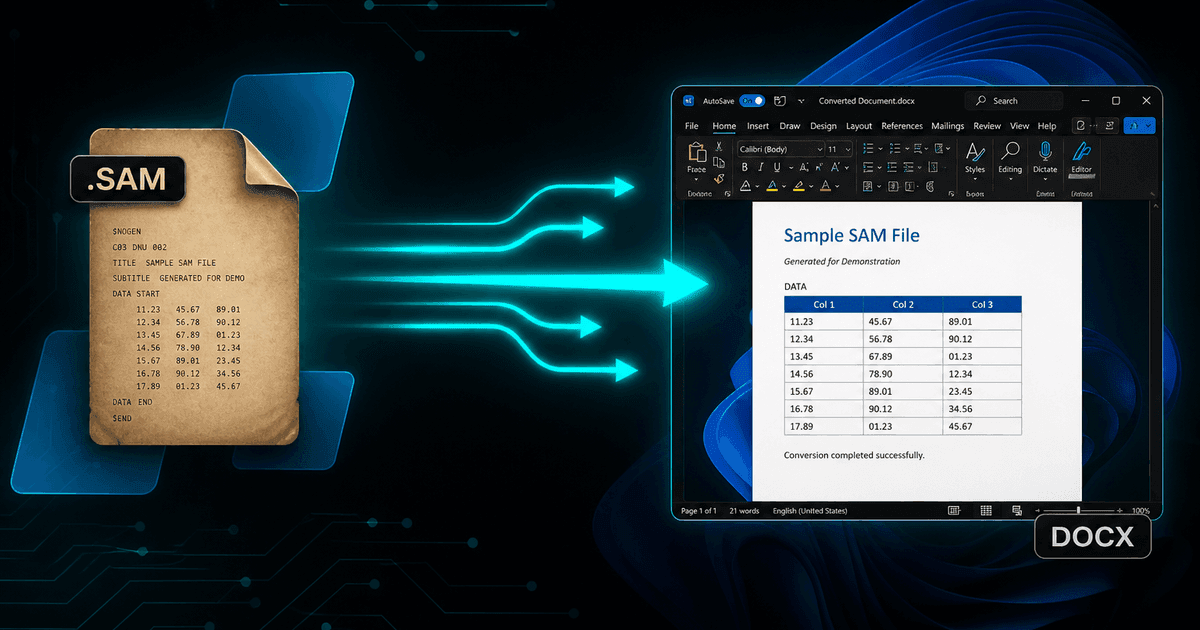
Windows 11 ships nothing that opens a .sam file. Word has no Ami Pro filter, LibreOffice has no Ami Pro filter, and the Store has no viewer. Rebuilding a Windows 98 virtual machine works but does not scale and creates a security problem. The workflow that holds up: install Ami Pro Converter, copy the .STY style sheets alongside the documents, convert a hard sample to DOCX and PDF, review it, then batch-convert the archive — all locally, with nothing uploaded.
What happens when you double-click a .sam file
Nothing useful. Windows 11 has no registered handler for the extension, so you get the "How do you want to open this file?" dialog and a list of applications that cannot read it. Pick Word and you either get an error or a document full of bracketed markup. Pick Notepad and you see the raw text stream with formatting codes woven through the sentences.
It is worth being clear about why, because the usual assumptions are wrong. This is not a compatibility mode you can enable, and it is not a case of Microsoft dropping an old filter in a recent update — Word never had an Ami Pro import filter. There is no legacy converter pack to install and no Store app that fills the gap.
The options, honestly assessed
Before jumping to a solution, it helps to know what each route actually costs. People usually try these in order, and usually abandon the first three.
1. Virtual machine with the original software
Genuinely works: Ami Pro 3.x in a Windows 98 VM opens the files perfectly. The costs are real though — sourcing legacy media and licences, an unpatched guest OS your security team will object to, no batch capability, and file transfer friction. Reasonable for five documents, unworkable for five thousand.
2. Text editor
Because .sam is text-based, Notepad or VS Code will show the words. Use this to identify a file or confirm a date. Do not use it to produce a readable document: tables are unrecoverable by eye and formatting codes contaminate everything you copy out.
3. LibreOffice
The standard advice for legacy formats, and it genuinely solves WordPerfect. It does not solve this. LibreOffice has never shipped an Ami Pro import filter, so the file either fails to open or imports as raw markup. Verifying this yourself takes two minutes and saves an afternoon.
4. Online converters
Quick for one non-sensitive file. Wrong for almost every real Ami Pro archive, because those archives are old business records. Uploading them is an untracked disclosure of confidential material, and most services cap file counts or add watermarks anyway.
5. Local desktop conversion
A native .SAM parser running on your own machine: applies the .STY style sheet, rebuilds tables and formatting, recovers WMF diagrams and equations, converts whole folder trees in one pass, and never transmits a byte. This is the option that scales.
Step 1 — Gather the files properly
Copy the archive to a working folder on your Windows 11 machine before you convert anything, and copy the .STY style sheets with it. This single detail causes more disappointing conversions than any other: without the style sheet, headings and body styles have no definitions to resolve against, and the output is flat.
Look for uppercase .SAM extensions as well as lowercase. Files that came off DOS or OS/2 systems, or out of certain backup tools, frequently have uppercase names. Search for both, and if you are scripting an inventory, make the match case-insensitive.
Finally, note anything anomalous: files of a few hundred bytes, files that do not start with a bracketed version header, files with duplicate names in different folders. Small files are often empty templates; unusual headers may indicate SZDD compression, which a good converter handles transparently.
Step 2 — Install the converter and test the hard cases
Install Ami Pro Converter on Windows 10 or 11. It is a standalone desktop application: no Ami Pro, no Office, no runtime dependencies, and no internet connection required for conversion.
The free trial covers 10 conversions with every feature enabled, which is deliberately enough to test properly rather than just watch a demo. Spend those conversions on your worst documents, not your easiest ones. Pick the report with the biggest table, the memo with an embedded diagram, the technical paper with equations, and something written in a language with accented characters.
Convert that sample to both DOCX and PDF in a single pass and compare the two. DOCX tells you whether structure survived in an editable form; PDF tells you whether the visual layout is right. If both look correct on your hardest files, the rest of the archive will be fine.
Step 3 — Batch-convert the archive
Point the converter at the top of your folder tree and let it scan recursively. Choose an output folder separate from the source so the original .sam files stay untouched, and enable folder-structure mirroring if the existing hierarchy carries meaning — by year, department, matter number, or client.
Pick your output formats deliberately. Most teams settle on two: DOCX for anything that may be edited again, and PDF for the retention copy. If the archive is destined for an intranet or a search index, add HTML or Markdown in the same run rather than converting twice.
Keep the conversion log. When someone asks in two years whether a particular document was migrated, a dated log listing every file processed and its result is a far better answer than a folder listing.
Step 4 — Verify and retain
Spot-check the output systematically rather than randomly: a few files from each source folder, plus every file the log flagged. You are looking for missing tables, empty pages, mojibake in accented text, and diagrams that failed to extract.
Retain the original .sam files permanently. They are the authoritative record, and no conversion is perfectly lossless. Storage costs almost nothing compared to the cost of discovering in three years that a converted document dropped a clause and the original is gone.
Common problems and what they mean
- Output has no headings or styles — the .STY style sheet is missing from the folder
- Accented characters show as boxes or question marks — a legacy code page needs mapping to UTF-8; recheck with the converter’s encoding handling rather than a text editor
- A file fails to parse entirely — it may be SZDD-compressed or truncated by an old backup; try it in isolation and check the file size
- Tables look wrong in DOCX but right in PDF — the table used Ami Pro frame layout; the PDF is your reliable record for those documents
- Some files are skipped — check for uppercase .SAM extensions and files with no extension at all
Why local conversion wins on Windows 11
- No legacy operating system or 1990s software licence to maintain
- No confidential document leaves the machine
- Whole folder trees convert in one pass, with structure preserved
- Style sheets, tables, diagrams, and equations are handled properly
- A conversion log gives you a defensible migration record
The short version
Windows 11 cannot open Ami Pro files, and the two applications people reach for — Word and LibreOffice — cannot either. That is genuinely unusual, and it is why these documents get written off as lost.
The fix is not exotic. Copy the archive with its style sheets, convert a hard sample locally, check the output, then batch the rest and keep the originals. An afternoon of careful work turns an unreadable folder into a searchable, editable, archivable set of modern documents.
Convert your files
Related reading
Open Ami Pro documents on Windows 11 today
Download the free trial and convert up to 10 .sam files to DOCX or PDF locally. No Ami Pro, no virtual machine, no uploads.
Free trial
Full app features — up to 10 files
Windows 10 or 11
Download the Windows installer for the full 10-file trial. Same app you unlock with a license — 100% local on your PC.