What Is a .SAM File (Lotus Ami Pro) and How Do You Open One in 2026?
A practical guide to the Ami Pro document format, the .STY style sheets that travel with it, and the options you actually have for opening one on a modern PC.
TL;DR
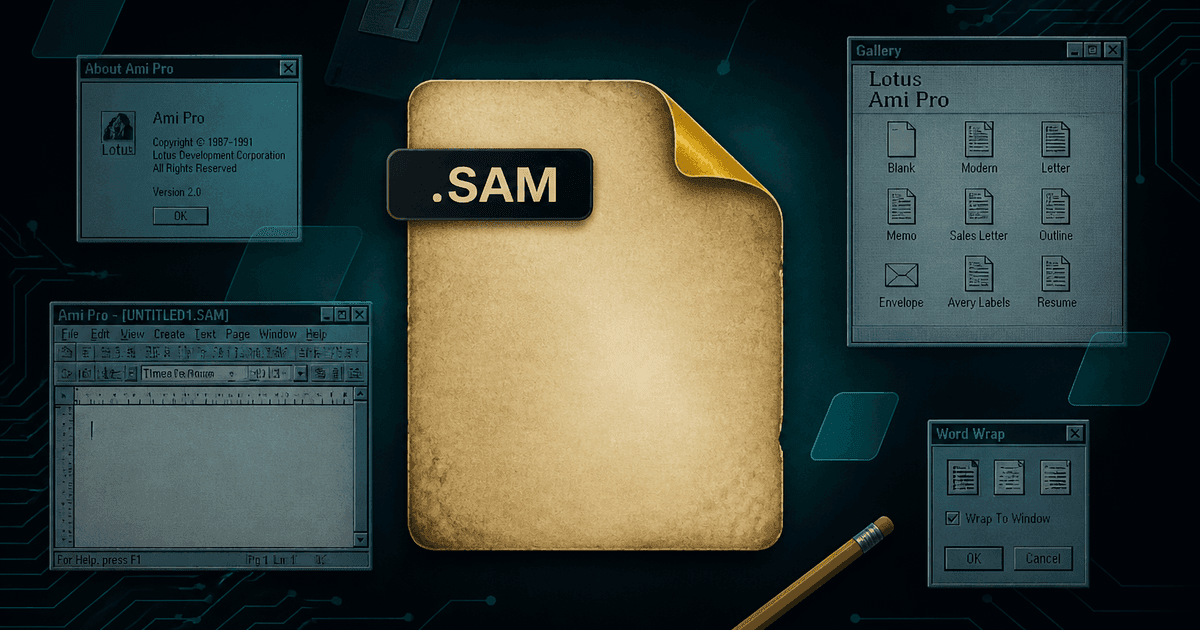
A .SAM file is a document created by Ami Pro, the word processor built by Samna, acquired by Lotus, and later renamed Lotus Word Pro. Despite the binary feel of most 1990s formats, .sam files are actually text-based and begin with a `[ver]` header. Nothing on a modern PC opens them: Microsoft Word has no Ami Pro import filter, and — unusually — neither does LibreOffice. Your realistic options in 2026 are a surviving Ami Pro or Word Pro installation, reading the raw markup by hand, or converting the files locally with Ami Pro Converter to DOCX, PDF, RTF, ODT, HTML, Markdown, or TXT.
What exactly is a .SAM file?
A .SAM file is a word processor document written by Ami Pro. The product started life at Samna Corporation as "Ami" and then "Ami Professional" — which is where the .sam extension comes from. Lotus Development acquired Samna in 1990, shipped Ami Pro versions 2 and 3 through the early 1990s, and then folded the product into the SmartSuite bundle where it was renamed Lotus Word Pro. IBM acquired Lotus in 1995, and the whole SmartSuite line was eventually retired.
In its day Ami Pro was genuinely excellent and widely adopted, particularly in law firms, government offices, and universities. It had a style-sheet model that was more disciplined than its competitors, solid table support, a frame-based layout system, and a built-in equation editor. Those strengths are exactly why so many important documents ended up in the format — and why they still matter today.
You will find .sam files with lowercase and uppercase extensions, since DOS and OS/2 file systems reported names in uppercase. A converter that only matches ".sam" will silently skip half of a real archive.
Inside the format: text, not binary
Most legacy word processor formats are packed binary containers. Ami Pro is unusual: a .sam file is a text stream with structured markup in square brackets. Open one in Notepad and you will see something that starts with a version header and continues with sections describing embedded style definitions, layout, and then the document text with inline formatting codes.
That design has a practical upside. You can confirm what a mystery file is with a text editor, and a well-written parser can recover content even from files that are partially damaged. It also has a downside: the markup is verbose and undocumented in public, formatting codes are position-sensitive, and text you can see is not text you can safely extract by hand — copy the visible words out of Notepad and you get formatting codes mixed into your sentences.
Some Ami Pro files you encounter will be compressed rather than plain text, typically with the SZDD algorithm Microsoft used for installation media of the era. Those files start with a different signature and need decompressing before parsing, which is why a naive "just read the text" approach fails on part of a real archive.
The .STY file next to your document
Ami Pro separated content from presentation years before that was fashionable. Each document references a style sheet — a .STY file — that defines the fonts, paragraph styles, heading hierarchy, margins, and tab stops. The .sam file says "this paragraph is Body Text"; the .STY file says what Body Text looks like.
This matters enormously for conversion. If a converter ignores the .STY file, every paragraph collapses to a default font and size, headings stop looking like headings, and a carefully structured 40-page report becomes an undifferentiated wall of text. If the converter applies the style sheet, the output looks like the original.
The practical advice is simple: when you copy an Ami Pro archive off an old server, copy the .STY files too, and keep them in the same folder as the documents. Ami Pro Converter detects and applies the matching style sheet automatically, but it can only do that if the file is actually there.
Why Word and LibreOffice cannot help
Microsoft Word has never shipped an Ami Pro import filter. There were third-party converters in the 1990s and a WordPerfect-era interchange path, but nothing in Microsoft 365 or any recent Word release will open a .sam file. You get an error, or Word imports the raw markup as literal text.
LibreOffice is the more surprising gap. LibreOffice is normally the answer to legacy format questions — it has import filters for WordPerfect, ClarisWorks, MacWrite, early Word, Lotus Word Pro in some builds, and many others. It has never had an Ami Pro .SAM filter. So the standard "just install LibreOffice" advice, which genuinely solves the WordPerfect problem, does nothing here.
That combination is what makes .sam files unusually stubborn. This is not a case of "the newest version dropped support." There is no mainstream application on a modern PC that can read the format at all, which is why people find these files and assume the data is simply gone.
Your realistic options in 2026
1. Find a surviving Ami Pro or Word Pro install
If a machine somewhere still runs Ami Pro or Lotus Word Pro, it will open the files. In practice this means keeping a Windows 95/98 or OS/2 virtual machine alive, and it does not scale past a handful of documents. It is also a security liability you have to justify.
2. Read the raw markup
Because .sam is text-based, Notepad will show you the words. This is fine for answering "is this the file I need?" and useless for producing a document anyone can read, because formatting codes are interleaved with the content and tables become unintelligible.
3. Upload to an online converter
Fast, and almost always the wrong choice for these files. Ami Pro archives are old business records — contracts, case files, HR matters, board minutes. Handing them to an anonymous website is an uncontrolled data transfer with no audit trail.
4. Convert locally with a native parser
A desktop converter that reads .SAM directly, applies the .STY style sheet, rebuilds tables, and recovers diagrams and equations gives you modern files you can edit, archive, and search — without uploading anything or resurrecting a 1990s operating system.
Which output format should you choose?
The right target depends on what happens to the document next, and it is worth being deliberate rather than converting everything to one format out of habit.
- DOCX — the document goes back into active editing in Microsoft Word
- PDF — you need a fixed, citable record for retention, litigation, or distribution
- RTF — the destination system is old, picky, or unknown; RTF has the widest reach
- ODT — your retention policy mandates OpenDocument, or the team works in LibreOffice
- HTML — the archive is going onto an intranet or into a knowledge base
- Markdown — the content feeds docs-as-code pipelines or an AI retrieval index
- TXT — you are triaging: index and search first, convert properly second
A sensible conversion process
Start by inventorying what you actually have. Count .sam files, check for uppercase variants, and confirm the .STY files came across with them. Note any files that look unusually small or that do not begin with the expected header — those are candidates for compressed or damaged files.
Convert a representative sample next, not the whole archive. Pick the most complex documents you can find: something with a large table, something with a diagram, something with an equation, something in a language with accented characters. Review the output carefully against what the document should look like. This is where you find out whether your .STY files are present and whether encoding is being handled correctly.
Only then run the batch. Convert into a separate output folder so originals remain untouched, keep the conversion log as a record of what was processed, and retain the original .sam files indefinitely — they are the authoritative source, and storage is cheaper than regret.
What to remember about .SAM files
- .SAM is the Lotus Ami Pro document format, from Samna via Lotus to Lotus Word Pro
- Files are text-based with bracketed markup and a [ver] header, sometimes SZDD-compressed
- The companion .STY style sheet defines the document’s appearance — keep it with the file
- Neither Microsoft Word nor LibreOffice has an Ami Pro import filter
- Local conversion is the only option that is both scalable and confidential
From unreadable to usable
The reason .sam files feel like lost data is that the normal recovery routes genuinely do not work. There is no viewer to download, no import filter to enable, and no supported version of the original software to install. That is a real gap, not user error.
It is also a solvable one. Ami Pro documents are structured, parseable, and — with the style sheet applied — convertible into modern formats with their formatting, tables, diagrams, and equations intact. Convert them once, keep the originals, and decades of records become searchable, shareable, and editable again.
Convert your files
Related reading
Open your first .SAM file in the next five minutes
Download the free Windows trial and convert up to 10 Ami Pro documents to DOCX or PDF. No signup, no uploads, no Ami Pro install required.
Free trial
Full app features — up to 10 files
Windows 10 or 11
Download the Windows installer for the full 10-file trial. Same app you unlock with a license — 100% local on your PC.