Beyond Ami Pro: Convert (Almost) Any Legacy File on Windows
Old shared drives mix word processors, spreadsheets, presentations, and images from four decades. Here is how one offline app opens and converts nearly all of it — including the formats Windows leaves as blank icons.
TL;DR
Nobody has an archive that contains only Ami Pro documents. The same folder that holds your .sam files almost always holds WordPerfect memos, Lotus 1-2-3 budgets, Microsoft Works letters, scanned TIFFs, and a pile of images Windows will not even preview. Legacy File Converter is the universal app from the same team behind this tool: it opens and converts more than 100 legacy and modern formats — documents, spreadsheets, presentations, and images — and it runs entirely offline on your PC. Try Legacy File Converter when your archive is bigger than one file format.
The problem: one folder, forty years of formats
Every legacy conversion project starts with a tidy assumption and ends with a mess. You are told there is "a folder of old Ami Pro documents" on a decommissioned server. You open it and find .sam files, yes — but also WordPerfect memos with .wpd extensions, Lotus 1-2-3 budget models in .wk1 and .wk3, Microsoft Works letters, a few .xlr spreadsheets, scanned correspondence saved as multi-page TIFFs, an old presentation nobody can identify, and hundreds of photographs in formats your image viewer refuses to open.
This is not unusual, it is the norm. Organizations did not standardise on one office suite until surprisingly recently. Through the late 1980s and 1990s a single department might have used Ami Pro for reports, WordPerfect for legal drafting, Lotus for numbers, and whatever the boss had at home for the newsletter. Every one of those tools wrote its own proprietary format, and every one of those formats is now unreadable by default.
The practical consequence is that a single-format converter solves part of your problem and leaves the rest sitting there. You finish the .sam files, feel good about it, and then realise that a third of the archive is still opaque.
What Windows will not even show you
Documents at least announce themselves with a recognisable extension. Images are worse, because Windows draws previews through small per-format "handlers" and ships handlers for only a handful of types. Everything else falls back to a generic icon, so you are staring at a wall of identical grey rectangles with no idea what is inside them.
Before you can decide what to convert, it helps to know which file types Windows simply refuses to display:
- HEIC / HEIF — iPhone and modern camera photos; Windows needs a paid HEVC extension to decode them at all.
- AVIF — next-generation web images; no thumbnail by default on most Windows installs.
- JPEG 2000 (.jp2) — common in archives, scanning workflows, and medical imaging; no native preview.
- Photoshop (.psd) — layered design files; Explorer shows only a generic icon.
- Targa (.tga) — game textures and 3D assets; no native thumbnail or preview pane.
- Legacy document formats such as .sam, .wpd, .wk1, and .wps — no preview, no thumbnail, no open handler.
Why the "right application" problem keeps getting worse
The instinctive fix is to find the original application. That works for about five minutes. Ami Pro was discontinued in the 1990s; even if you locate an installer, it is a 16-bit or early 32-bit program that will not install cleanly on 64-bit Windows 11. WordPerfect still exists but modern versions have dropped support for their own oldest formats. Lotus 1-2-3 is long gone. Microsoft Works was retired in 2009.
The second instinctive fix is a free online converter. That works too, right up until someone in compliance asks where the file went. Uploading a 1994 employment dispute file, a signed contract, or a patient letter to an anonymous website is a data-transfer event you cannot audit, cannot reverse, and in many jurisdictions cannot justify.
The third fix — and the only one that scales — is a local desktop converter that reads the formats directly. No original application, no upload, no per-file manual work.
One app that previews and converts (almost) anything
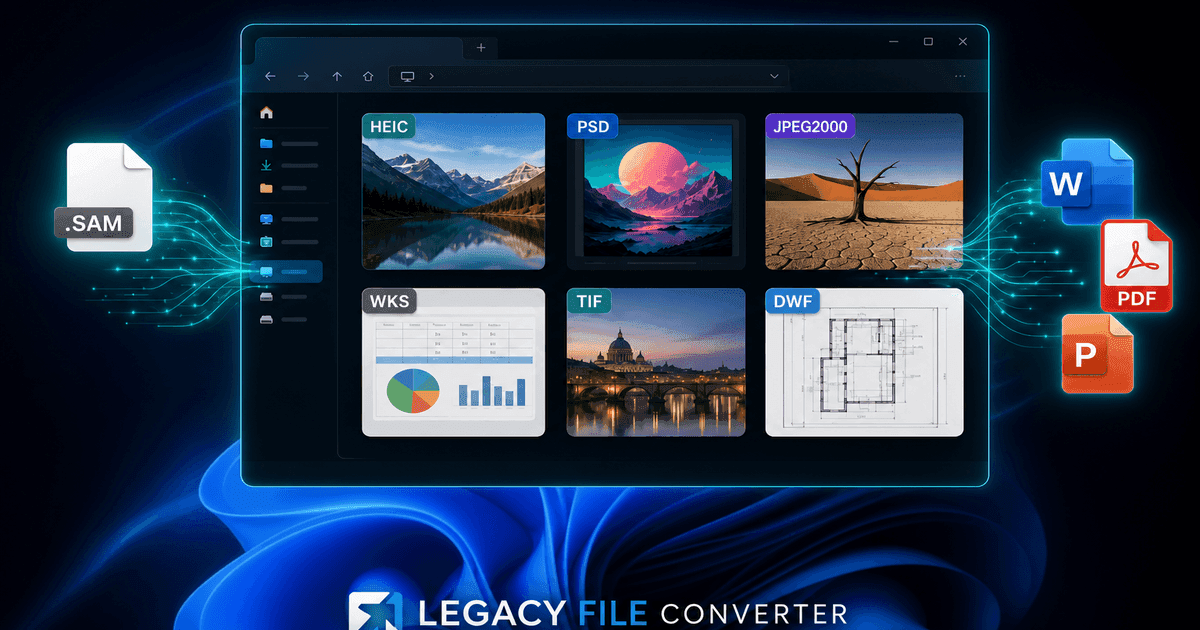
Legacy File Converter is built for exactly this mixed-archive scenario. When you install it, it registers a lightweight preview and thumbnail handler with Windows so formats like HEIC, AVIF, JPEG 2000, PSD, and TGA finally appear in the file grid and the preview pane. Then, when you are ready to commit, it converts files to the formats people actually use today.
1. Documents and spreadsheets
WordPerfect, Ami Pro, Microsoft Works, Lotus 1-2-3, AppleWorks, and legacy Office files convert cleanly to DOCX, XLSX, PDF, HTML, Markdown, or plain text — with formatting and tables preserved rather than flattened.
2. Presentations and images
Old presentation formats become PPTX or PDF, while HEIC, PSD, JP2, TIFF, and TGA convert to JPG, PNG, or PDF — flattened, colour-corrected, and ready to use anywhere.
3. Whole folders at once, offline
Point it at a folder tree of mixed legacy files and convert everything in one pass. Nothing is uploaded, so confidential correspondence, contracts, and personal photographs never leave your PC.
A practical two-tool workflow
If Ami Pro documents are the bulk of your archive and fidelity matters — style sheets applied, tables rebuilt, WMF diagrams and equations recovered — start with Ami Pro Converter. It is a specialist: a native .SAM parser with format-specific handling that a general-purpose tool cannot match.
Then run Legacy File Converter across the same folder tree to sweep up everything else. The two tools share the same offline philosophy and the same batch approach, so the workflow feels consistent: point at a folder, choose outputs, review a sample, convert the rest.
For inventory-first teams, there is a useful trick. Convert the entire archive to plain text as a first pass, index the result with any desktop search tool, and use that index to decide which documents deserve a full-fidelity DOCX or PDF conversion. Triage before you invest.
How Legacy File Converter works day to day
There is nothing to configure. Install the app and Windows starts drawing supported image formats like any other picture. Open a folder, switch to a thumbnail view, and files render in the grid. Select one and press Alt + P to see the full image in the preview pane without opening anything.
When you want permanent copies, drag files in or right-click them in Explorer and pick an output format. Batch jobs run in parallel, mirror your source folder structure if you ask them to, and write a log you can keep as a migration artifact.
Why a universal converter belongs in the toolkit
- Archives are mixed by nature — a single-format tool always leaves a remainder
- Over 100 legacy and modern formats, including documents, spreadsheets, presentations, and images
- Explorer preview and thumbnail handlers for image types Windows ignores
- Fully offline: no uploads, so confidential records stay inside your network
- Batch conversion across whole folder trees with structure preservation
Convert one format, or all of them
Ami Pro Converter is the fastest, highest-fidelity way to handle .sam documents: native parsing, automatic .STY style sheets, recovered diagrams and equations, and seven modern output formats. That is the right tool when Ami Pro is the problem.
But when the folder turns out to hold WordPerfect, Lotus, Works, scans, and images too — and it usually does — Legacy File Converter covers the rest. One offline app, more than 100 formats, no uploads, and a $79.95 lifetime licence. Use both and the archive stops being a liability.
Convert your files
Related reading
Start with the Ami Pro documents
Try the free Windows trial on a sample of .sam files and confirm the DOCX and PDF output meets your standards before you process the full archive — 10 conversions, no signup.
Free trial
Full app features — up to 10 files
Windows 10 or 11
Download the Windows installer for the full 10-file trial. Same app you unlock with a license — 100% local on your PC.